Workspace administration
Workspace administration is intended for organization owners, managers, and system administrators. It is not a separate back-office system. The relevant settings appear within the main product according to your role and permissions. Administrators decide who can see which information, and that also defines what digital employees can read and process in the workspace.
Invite and remove members
- Send member invitations to add colleagues to the workspace;
- Assign permissions by role, such as who can create projects, publish websites, or only view information;
- Remove members or change roles when needed.
Roles and permissions
GuppyCubed restricts permissions at the workspace or organization, project, and folder levels. Administrators can:
- Set each member's workspace-wide role;
- Invite an external collaborator to a specific project so they can only access that project;
- Review audit records to understand who changed what.
Workspace and organization overview
Administrators can review every project, member, data volume, and usage metric within the workspace without opening each project individually.
Review the plan, AI credits, and members
Settings show the current plan, AI credits, and resource usage. The Free plan includes up to 2 people; Monthly (US$24) and Annual (US$240) are priced per person, so adding a teammate adds one more person at the same price. Top up credits when they run out. See plans and AI credits.
A note for multi-organization administrators
If a company, foundation, or government agency uses GuppyCubed to manage multiple partner or funded organizations, centralized multi-organization governance is still planned and is not part of the current plan. Contact the GuppyCubed sales team to confirm contract and implementation details.
Use the actual management entry
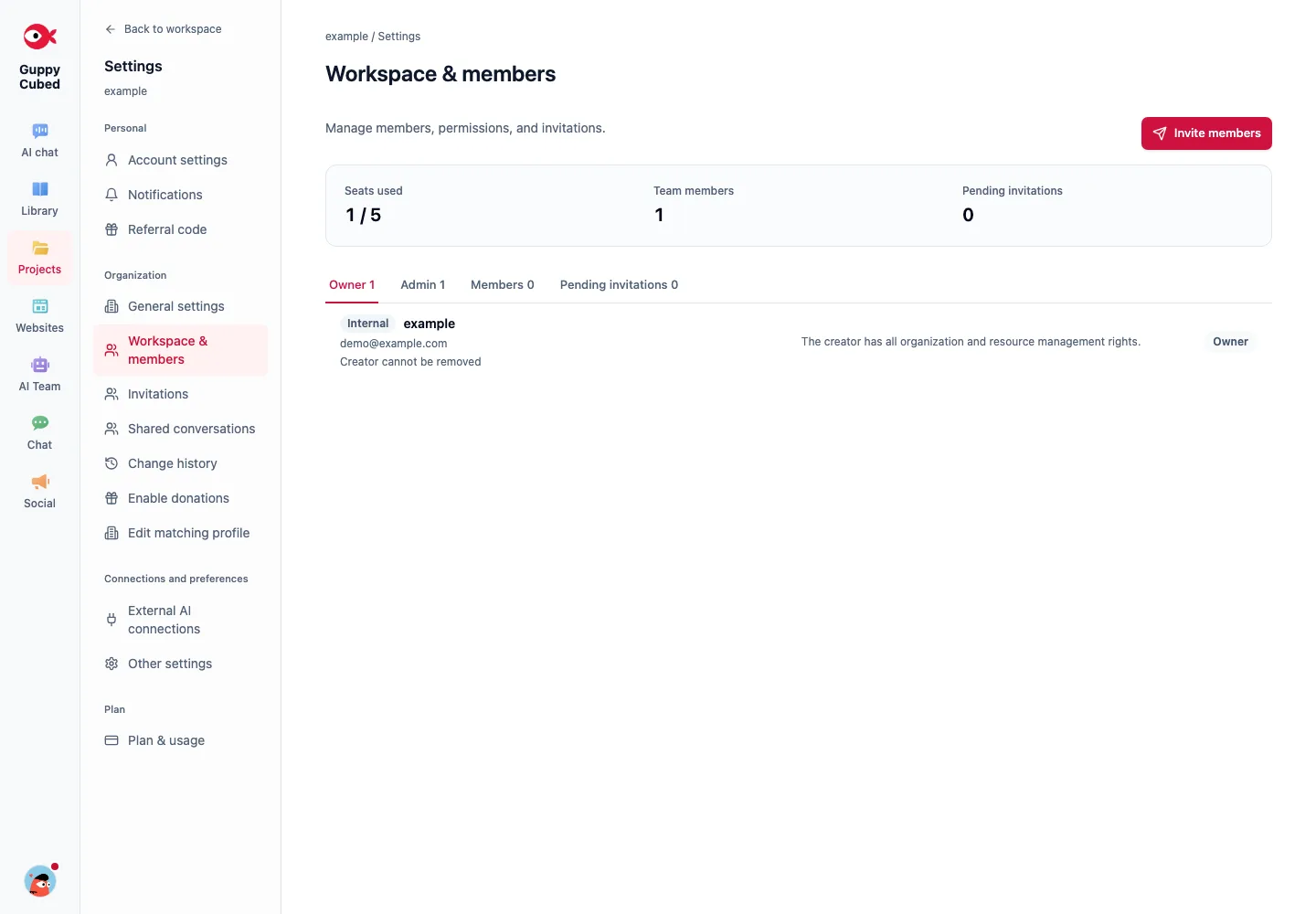
Open organization and members from the user menu, then inspect members and invitations. Confirm the organization before inviting or modifying a member.
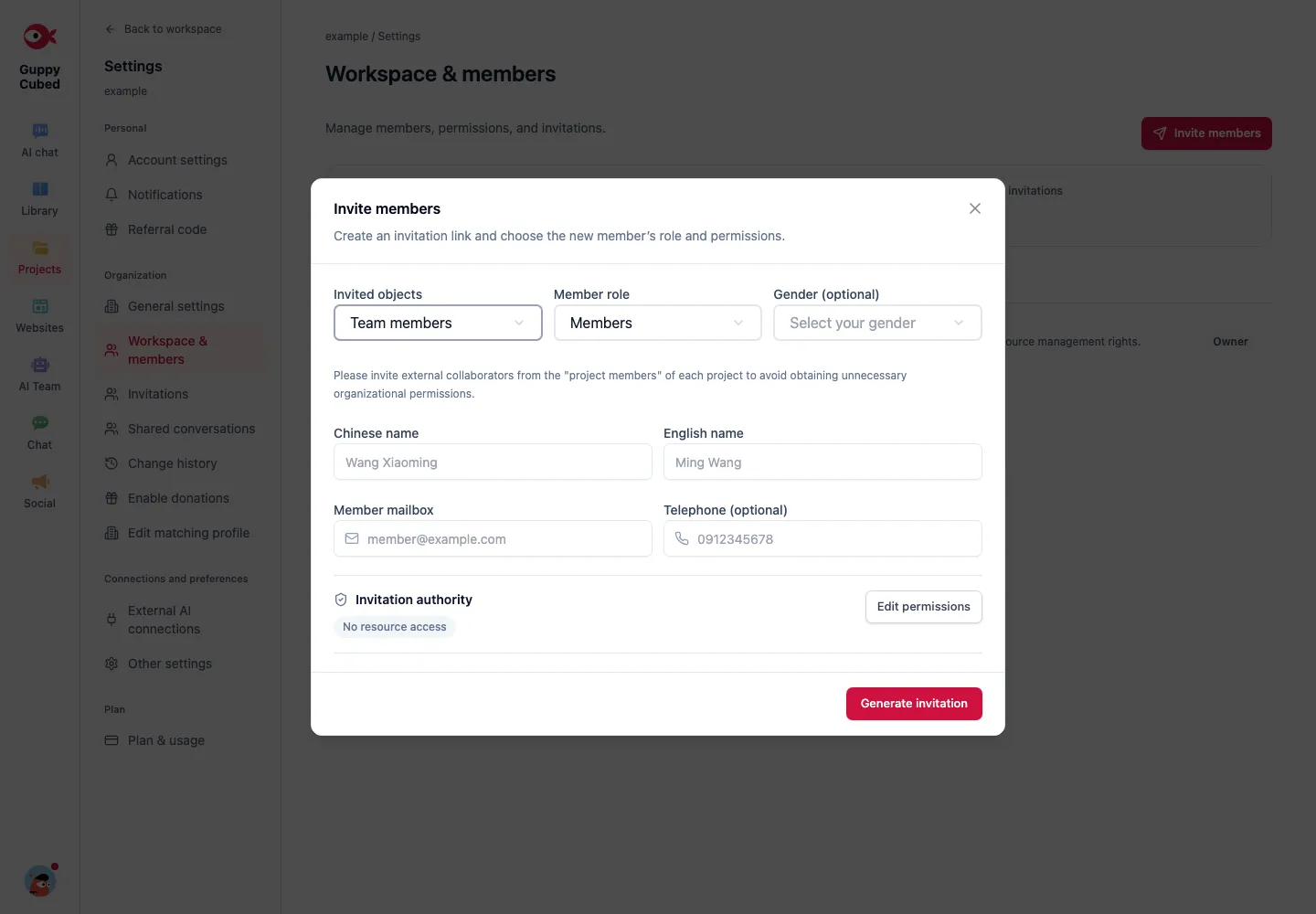
Decide access before inviting
Use the internal invitation form for internal members. Follow the screen’s instruction to invite external collaborators from project members instead of granting unnecessary organization-wide access.
Resource permissions and project roles differ
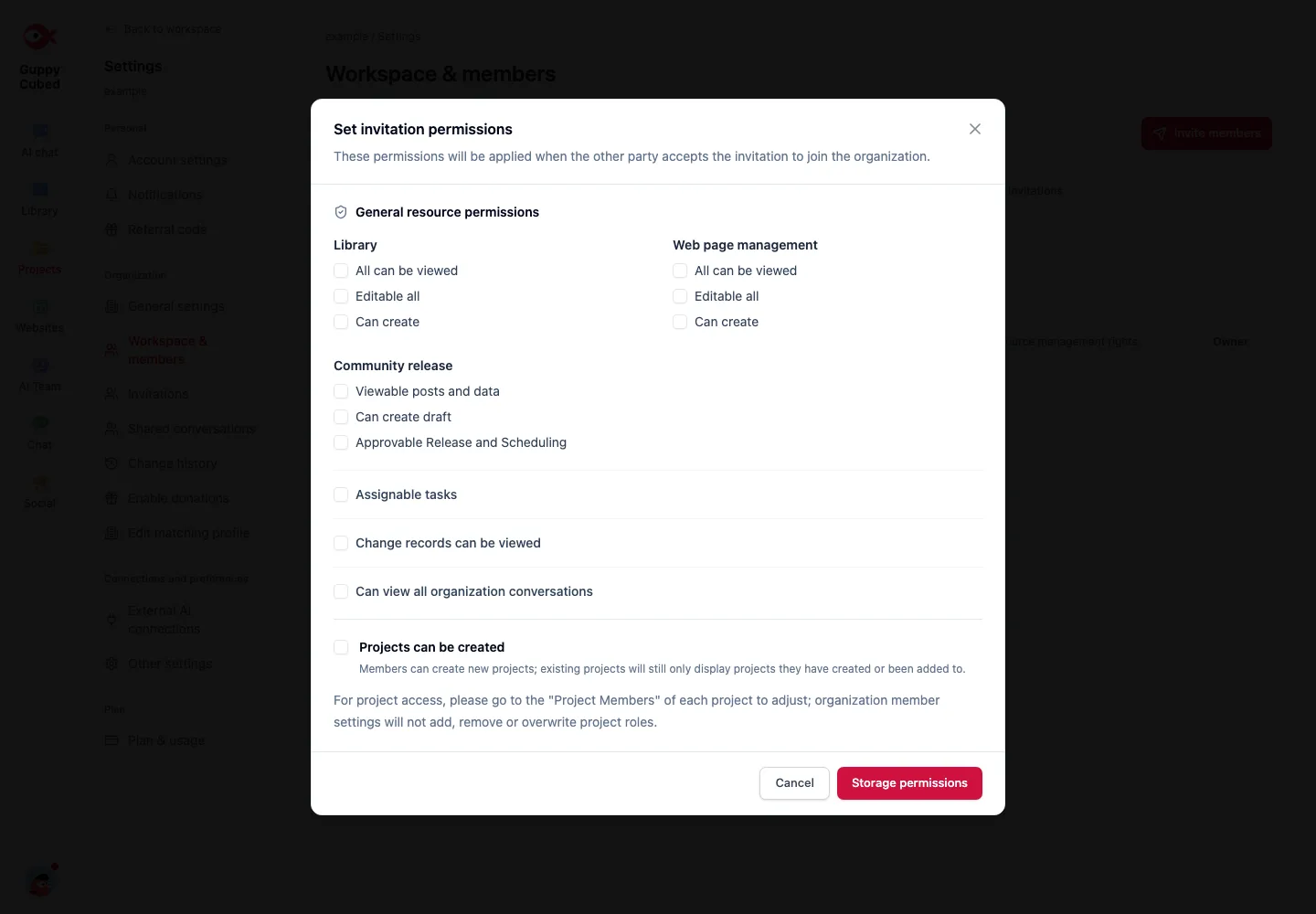
Creating projects does not imply access to every existing project, and organization membership does not override project roles. Check the intended member’s resulting scope before handoff.
When work or membership ends
Assign successors for unfinished work and important material, then review organization, project, folder, and external-tool access. Understand the impact before removing membership; deleting sources is not a substitute for permission management.
Assign work before access
Define what the person will do and which projects and material they need. Internal administrators and short-term partners need not share the same scope. Broadening every permission merely to reveal a button makes later review harder.
Verify an invitation
Check the destination account, role, and detailed permissions. After acceptance, have the recipient open the intended task or source as themselves and verify necessary access.
| Issue | Scope to inspect |
|---|---|
| Missing project | Workspace and project membership |
| Listed but unreadable file | Folder or individual sharing |
| Readable but not manageable | Role and editing capabilities |
| Access remains after departure | Individual links and external scope |
Periodic review and departure
Review pending invitations, former partners, and ownership of important material. Arrange handoff before access changes and retain the reason so future administrators understand the work requirement.