Delegate your first task
This page helps you create a workspace, put your first employee on shift, and hand it your first task. Your first employee is your first digital employee: GuppyCubed AI, included in every workspace.
1. Create an account
Sign up with your email address or phone number, or sign in with Google. After registration, you will first enter your Impact Center. This is your individual entry point, not a full workspace.
2. Create or join a workspace
Choose the option that fits your situation:
- Create a new workspace: Anyone can sign up. After registration, follow the on-screen steps to create your own workspace; no activation code is needed. The Free plan covers 2 people (the creator plus 1).
- Join an existing workspace: If a colleague already uses GuppyCubed, ask them to send you a member invitation. Accept it to enter the organization's workspace.
A workspace holds projects, tasks, the library, websites, and collaboration data. The Impact Center is not a full workspace.
3. Create your first project
After entering the workspace, create a project and set its timeframe, goals, and owner. Projects connect tasks, events, surveys, and knowledge with a shared goal. General knowledge and some work can also use independent entries.
4. Start with one task
You do not need to understand every feature at once. Begin with something you are already working on:
- Running an event → Create an event, open registration, and generate a check-in QR code;
- Collecting information → Create a survey or import an existing Excel survey;
- Collecting donations → Create a donation project and a public donation page;
- Already have many files → Upload them directly to the library or import them from Google Drive.
5. Hand the first task to your first employee
Start by telling it three things: who you are, what you are working on, and the first thing you want to hand off. Once the data is available, describe what you need in the conversation. For example: “Organize the photos and attendance list from this event into a summary.” The AI reads the project data you have authorized and produces a Word, PowerPoint, or Excel draft. You can download and edit it, or continue refining it in GuppyCubed.
Remember: AI produces a draft. Verify all figures and sources before using it externally.
Recommended starting points by role
- Administrators / frontline staff: Begin with running an event or uploading field information. The mobile app is the easiest way to record audio and take photos on site.
- Project leads: Create the project structure first, assign tasks, and then invite members.
- Reviewers / partners: Wait for a colleague to invite you to the project, then review the uploaded information and drafts directly. You do not need to create your own workspace.
Exercise: prepare meeting notes another person can use
- Select an authorized meeting document or recording and confirm its workspace and location.
- Wait for required parsing or transcription, then check the preview, names, dates, and decisions.
- Ask AI to list decisions, next actions, owners, and uncertainties, without inventing owners absent from the material.
- Turn missing information into tasks with deadlines and deliverables. Check membership and permissions before assigning someone.
- Ask a colleague to verify the summary against its sources and continue the work.
States that commonly cause confusion
| State | Next action |
|---|---|
| Signed in but no project is visible | Check active workspace, role, and invitation |
| Uploaded but not found by AI | Check location, processing, and selected sources |
| Draft generated | Verify sources and publication scope |
| Task submitted | Check whether review or revisions are still required |
Completing this cycle matters more than finishing every feature within a fixed number of minutes.
Find the create entry
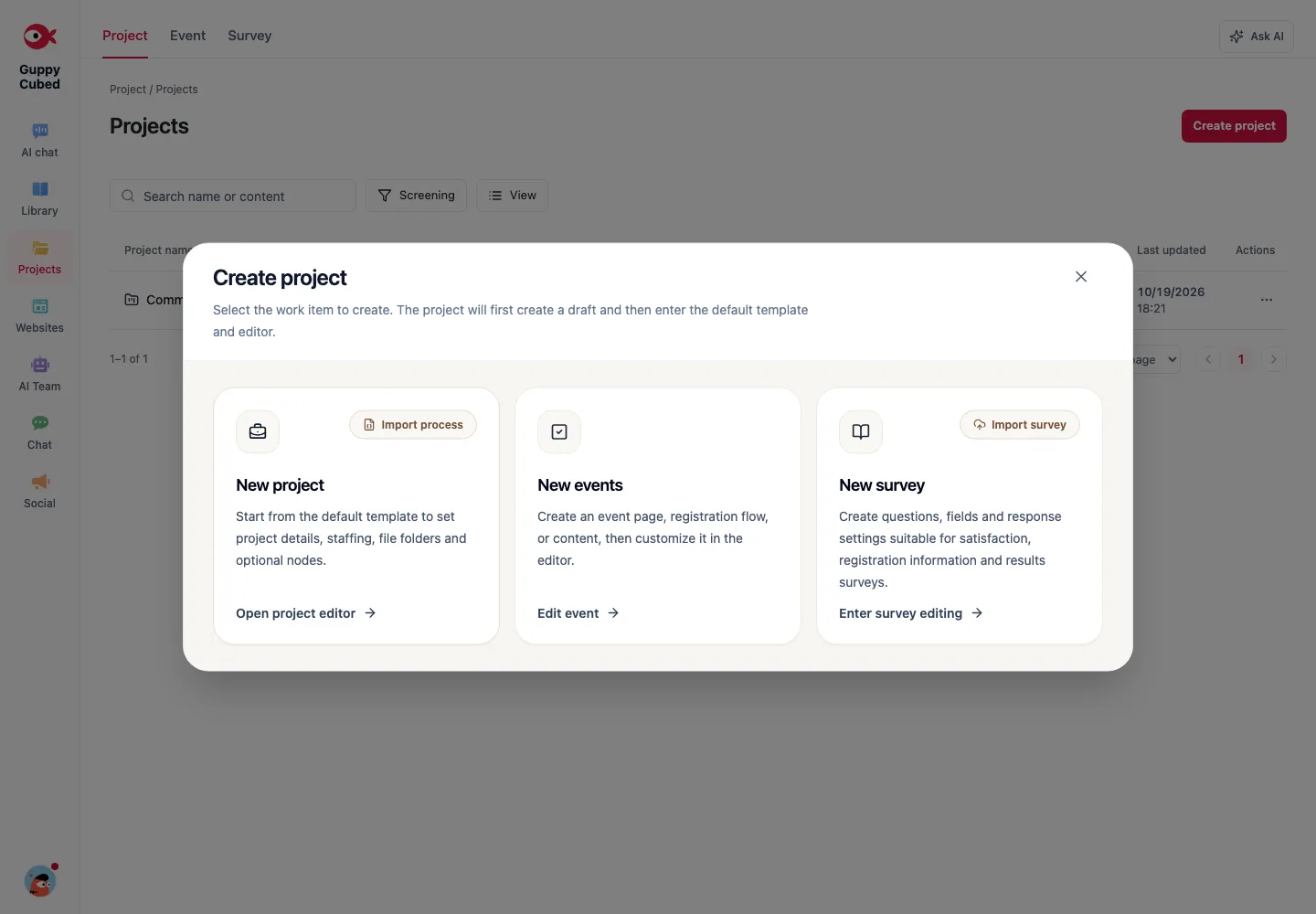
Guided practice: turn meeting notes into a handoff
Use fictional tutorial material instead of customer data. Create a workshop note with background, confirmed decisions, unresolved points, and delivery requirements. Exclude real contact information.
1. Preserve source detail
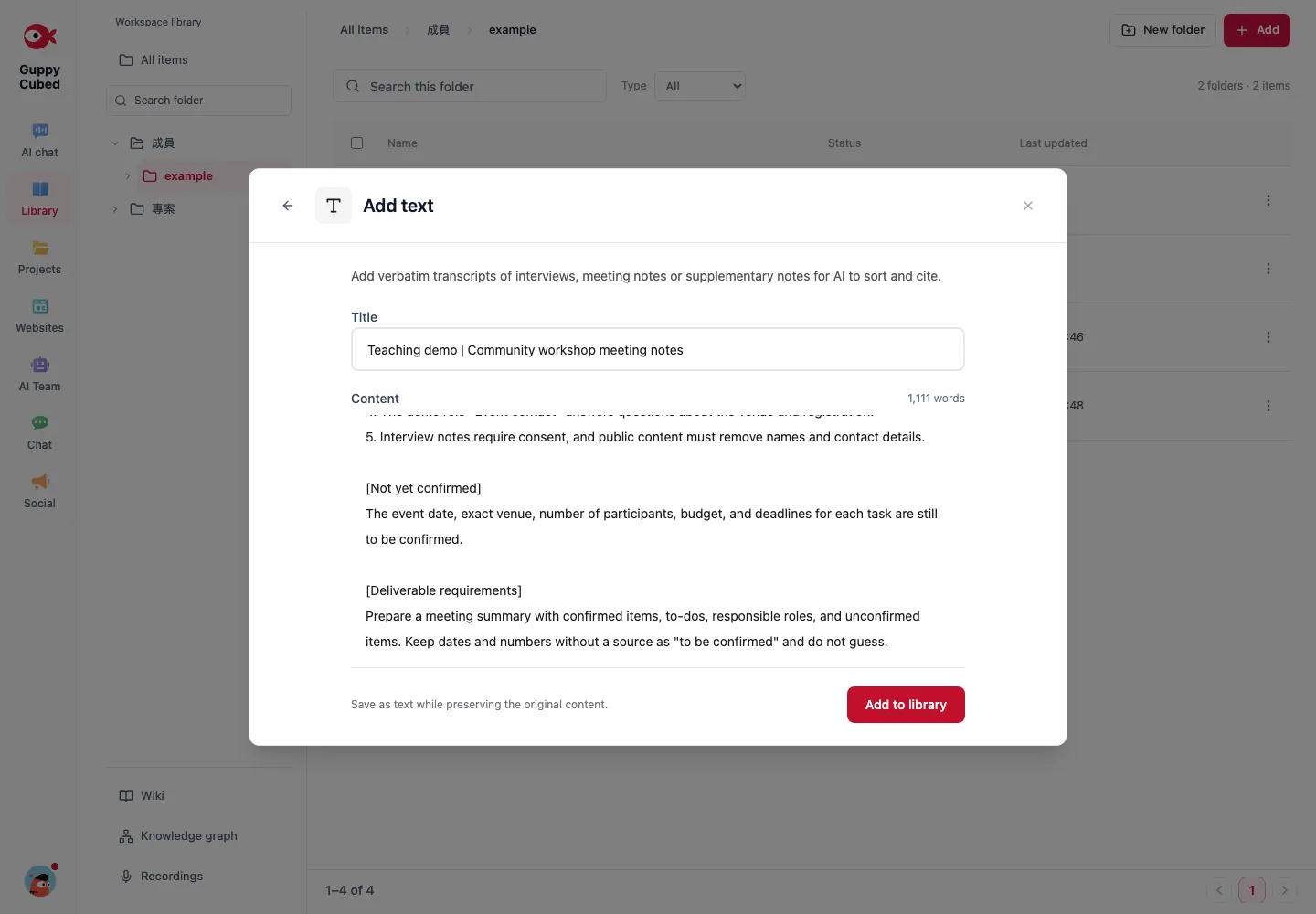
Write that accessibility is a venue criterion, the event contact will ask about equipment, and the date remains undecided. This is more useful than “venue pending”: the next person can distinguish decisions from open work.
2. Inspect the stored result
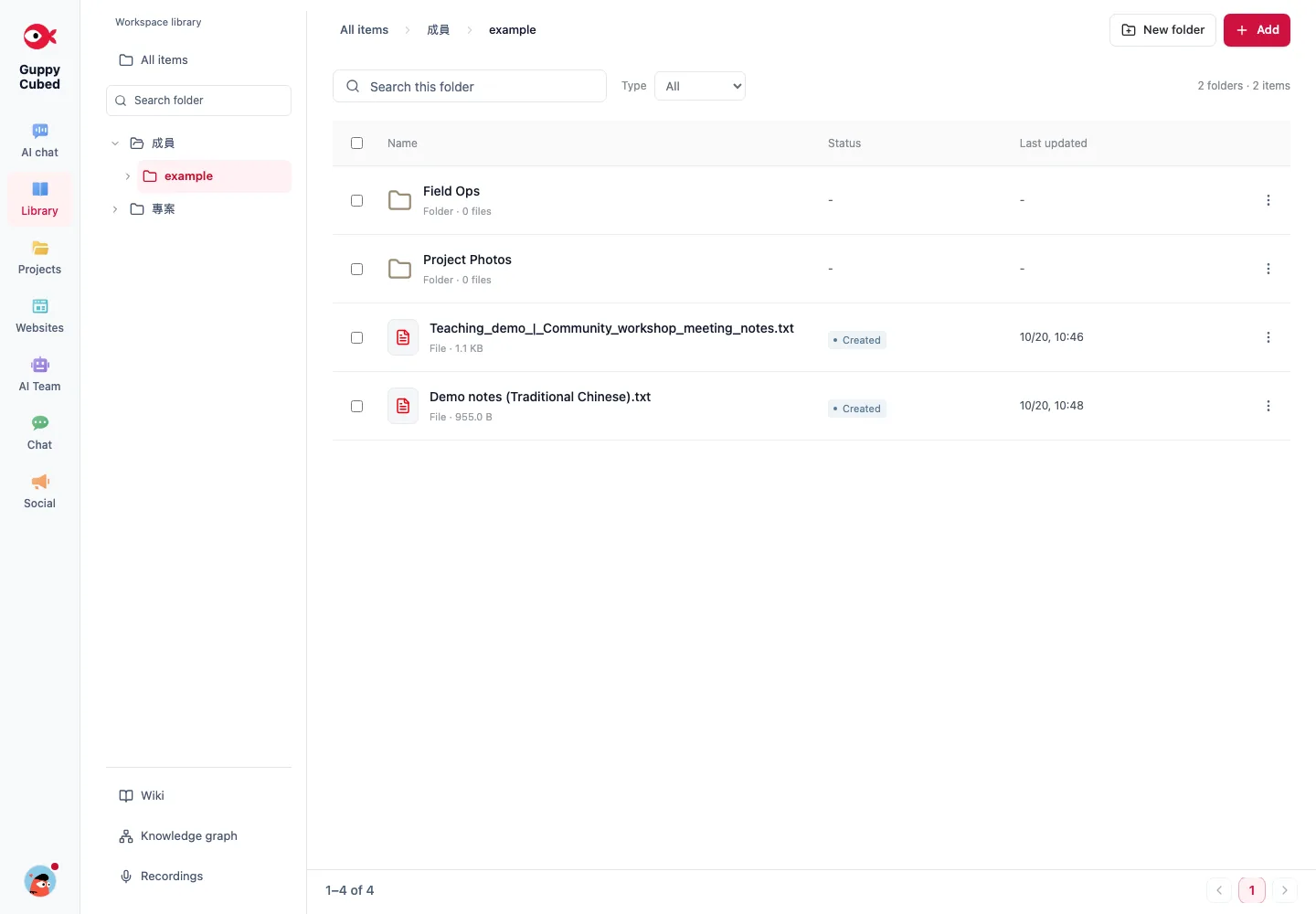
Find the filename in the same workspace and folder, read the summary, and open the original. Confirm that undecided dates remain undecided and that responsible roles were preserved. File existence and accurate content require separate checks.
3. Give an acceptance-ready request
Organize the tutorial note into confirmed decisions, actions, and unresolved points. Use only roles named in the source. Mark unspecified deadlines as pending. Add no dates, budgets, or outcome figures.
4. Compare the draft with the original
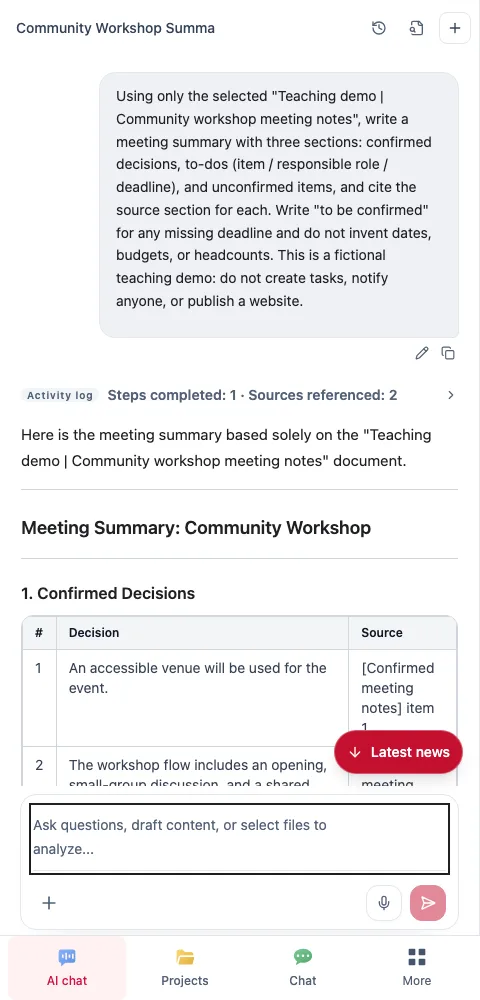
If “ask about equipment” becomes “complete the venue reservation,” request a correction. Obtain an actual decision before adding a deadline, and update the source rather than introducing unsupported details only in the summary.
Completion criteria
You should have an original source, an organized result, and a list of open work. Ask the next person to identify the next action, owner, and missing information. The exercise is complete when they can proceed without reconstructing the entire background.
Download the practice material
Download the tutorial source and sample Word summary. Compare the original with the output. All material is fictional; unresolved dates, venue, and figures are intentionally retained for review practice.
Next step
To understand how the platform works, read Core concepts. To look up specific features, go to Using GuppyCubed.