Team library and document Q&A: upload, search and review
How can AI answer questions using your team documents?
Add authorized files to the workspace and wait for processing to complete. Search and select relevant material as sources for an AI conversation. Specify whether you need a summary, comparison or report, and ask it to retain unresolved details. Check the response against the original material rather than treating fluent text as proof of accuracy.
This workflow helps teams whose information is spread across documents, meeting notes and cloud folders. Do not assume unprocessed or inaccessible files can be used. See the GuppyCubed homepage for the product, then follow the project handover workflow when preparing a deliverable.
Upload documents, images, audio, and video
You can upload the following directly to a project or workspace library:
- PDFs, Word documents, spreadsheets, and text files;
- Images;
- Audio and video recordings.
Upload completion depends on connectivity, file size, and device state. Check the result before closing the page. After uploading, you can rename a file, move it into a folder, or delete it.
Import from Google Drive
After authorizing your Google account, you can search for and import files directly from Drive without downloading them locally and uploading them again.
Folders, privacy, and sharing
Use folders to organize library content. Each folder can have:
- A summary description;
- A privacy scope that controls who can view it;
- Sharing access for specific members or collaborators.
Transcription, webpage capture, and analysis
- Audio: Uploaded recordings are transcribed automatically. You can transcribe them again or revise the transcript. Long recordings are divided into searchable segments.
- Webpages: Paste a URL and GuppyCubed will analyze and save the page content so it can later be searched and cited.
- Images: Images embedded in documents can be extracted for individual use.
Search and cite knowledge in conversations
Library content becomes searchable after processing. In an AI conversation, you can ask it to read a specific project or folder—for example, “Find all data related to the number of people served by this event.” AI only reads information within your authorized scope.
Tips
- Saving, parsing, and AI analysis are distinct steps. Parsing triggers and usage depend on the upload entry, operation, and plan settings; check the actual status and usage.
- Uploaded files display a processing status: processing, completed, or failed. You can upload the file again if processing fails.
Add content on the web
Confirm the active folder in the Portal library, then open Add. Choose local files, a folder, Google Drive, webpages, or text. For a checked explanatory note, use text and retain its source and date.
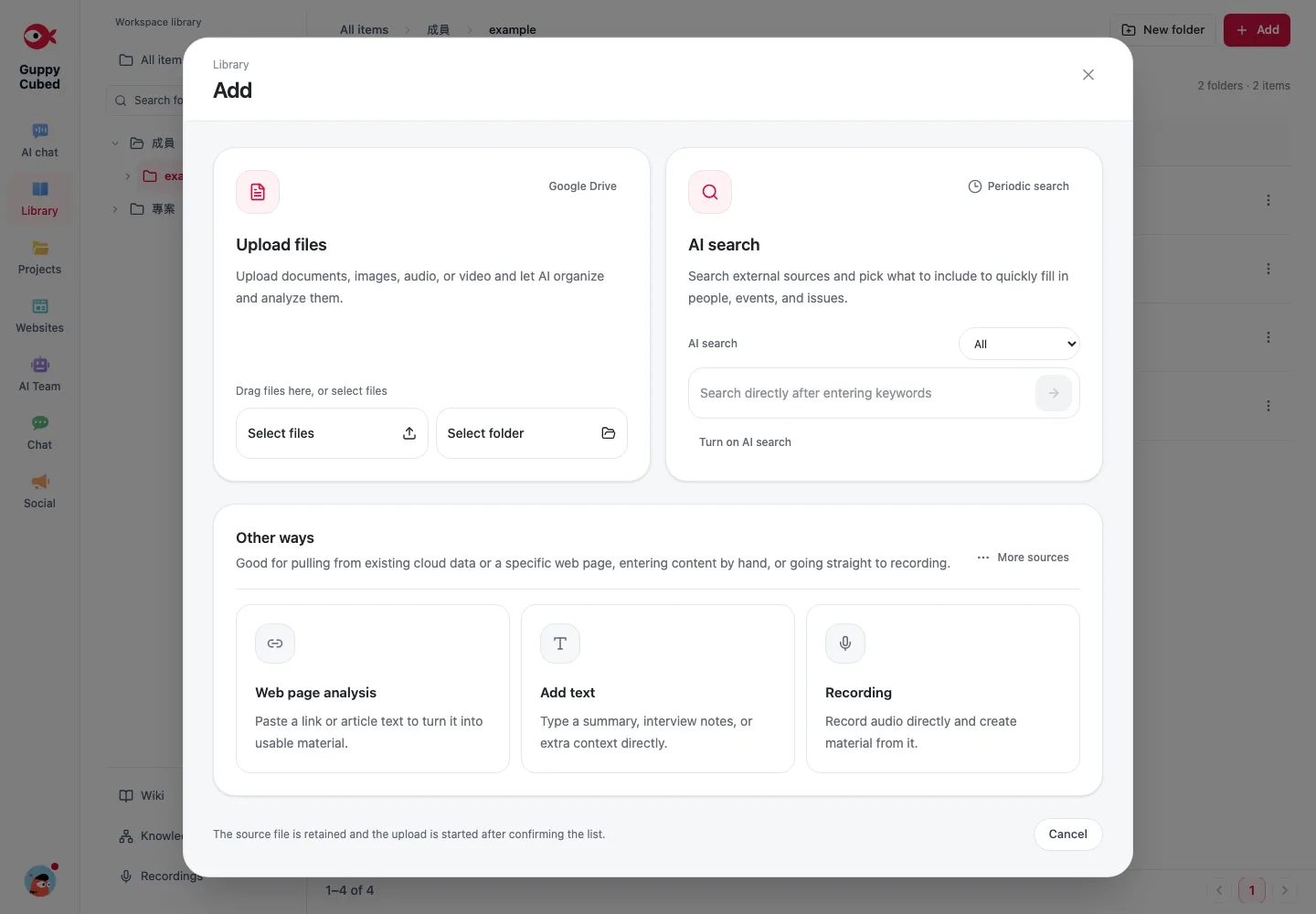
Check webpage availability
Confirm that you may use the material. If capture is blocked, too short, or requires sign-in, use the available manual-input mode for authorized content. Failed capture is not evidence that relevant information does not exist.
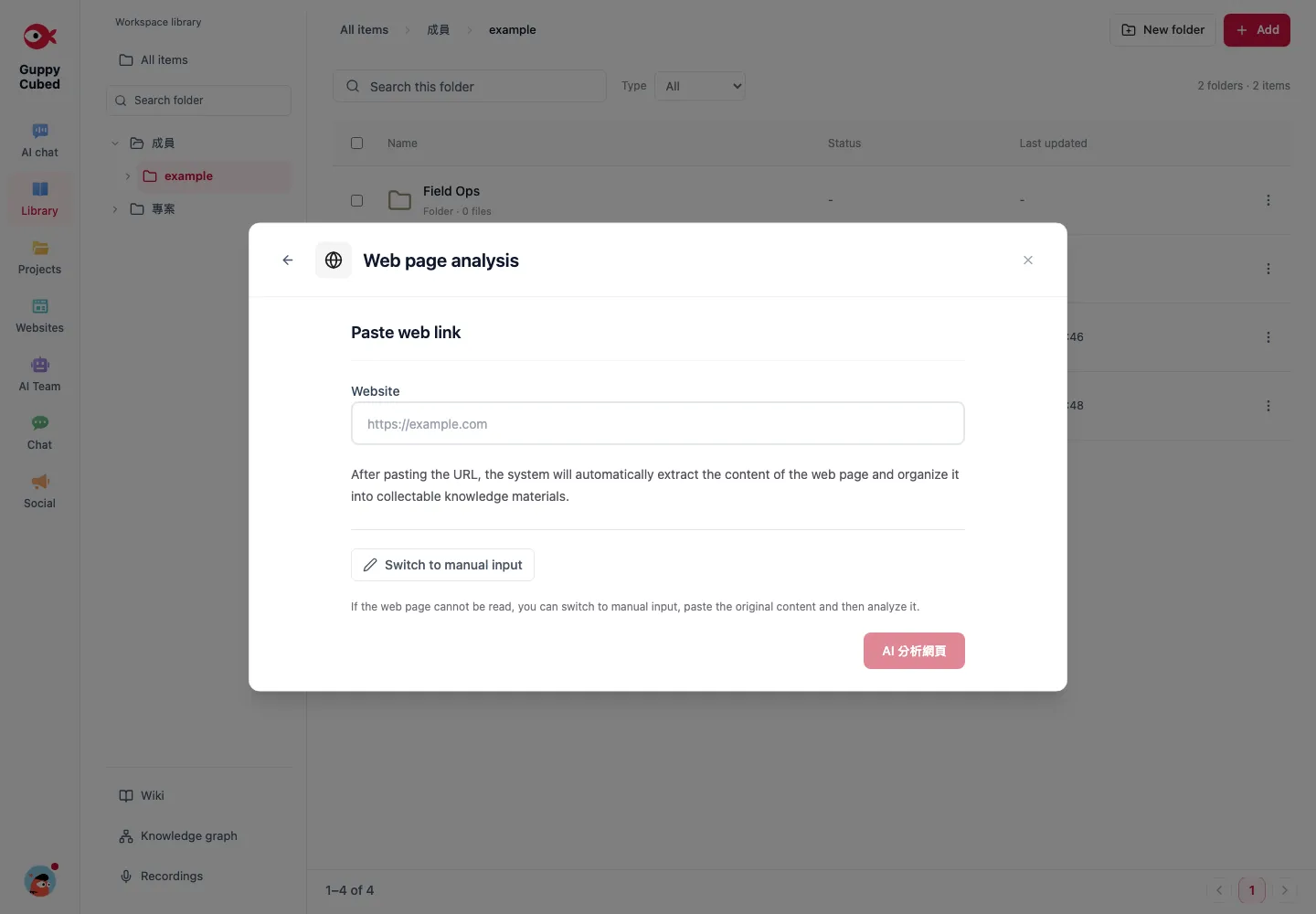
Validate and organize the result
Preview the content and check text, pages, filename, and period. Use consistent names and folder descriptions. Storage without completed parsing does not imply all content is searchable by AI.
Before importing again, check workspace, folder, filters, and processing. Confirm that the previous operation failed and cannot be retried, avoiding indistinguishable duplicates.
Decide how the material will be used
For storage, check naming, destination, and completeness. For AI work, also check readable content and processing. A scan, spreadsheet, and recording need different validation; a single completed status cannot establish accuracy of every part.
| Material | Prepare | Check after import |
|---|---|---|
| Meeting text | Decisions, roles, open questions | Confirmed versus pending statements |
| Scan | Legibility and page orientation | Text, tables, page completeness |
| Spreadsheet | Fields, units, period | Dates, blanks, totals |
| Recording | Topic, consent, destination | Playback and transcript accuracy |
Complete a text note workflow
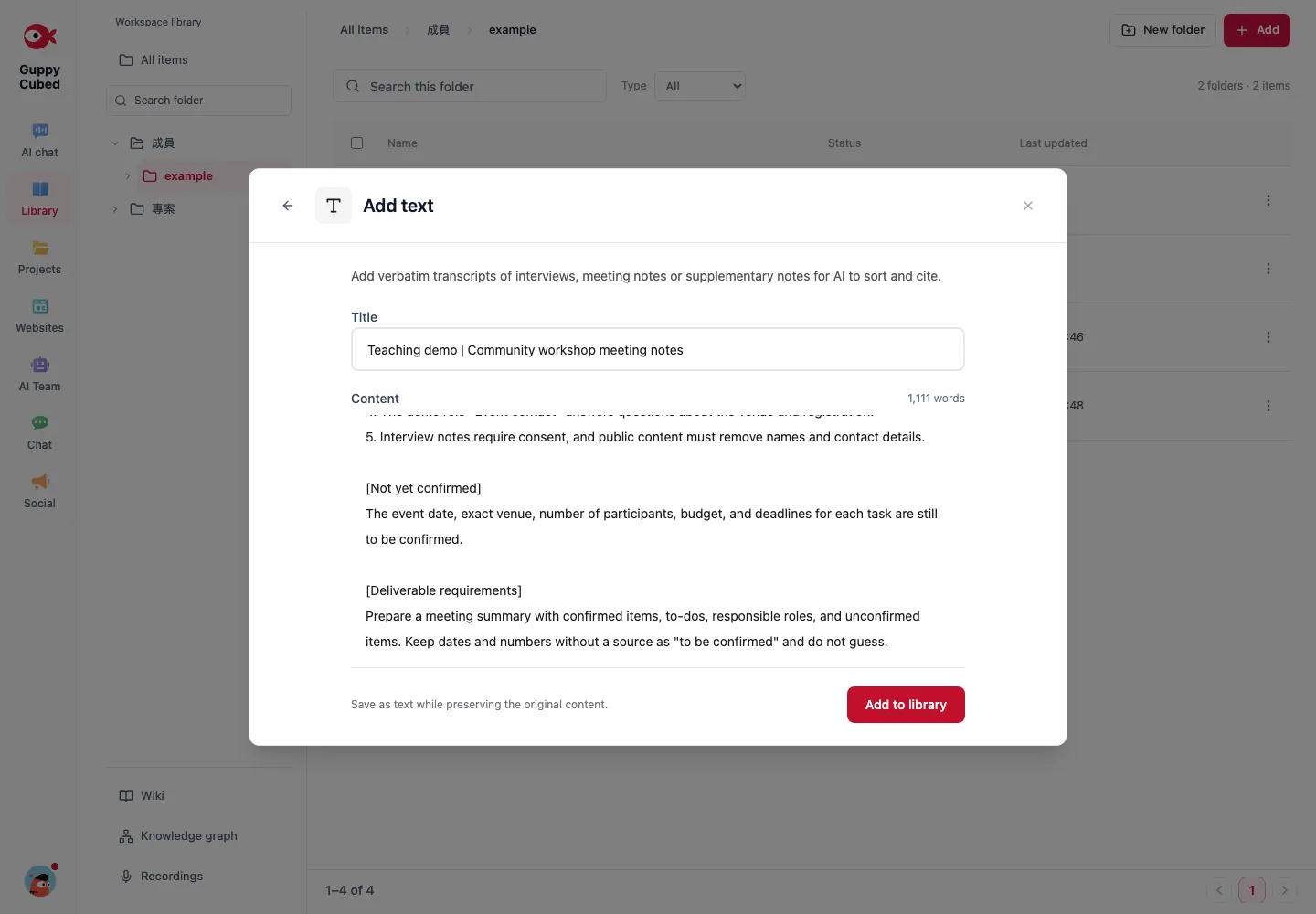
Choose Text from Add and enter a recognizable title. Preserve original paragraphs instead of rewriting everything first. Add it to knowledge, find it in the list, inspect the generated summary, and select it as a conversation source when needed.
Exclude irrelevant or outdated sources. When selecting several files, specify comparison, combination, or which file takes precedence. More material is not necessarily more accurate, particularly when sources conflict.
Check whether a search result is relevant
Check filename, date, and actual passages. Replace broad terms such as “outcomes” with the topic, event name, or role. Inspect folder and processing state before concluding the team has no relevant record.
After moving or updating
Tell regular users about changed location or purpose. Retain the basis of a published output before removing outdated copies. Source cleanup does not revise already published content.