Generate a website from one sentence with Magic Web
Describe the website's purpose in a conversation
Tell the AI what kind of website you need—for example, “Create an introduction page for this fundraising campaign.” AI uses your organization data, available images, and the site's purpose to draft its structure, copy, and layout.
Edit manually and replace assets
Use the standard editor to change text, images, and other assets after generation. You do not need to know how to code, and you do not need AI for every change.
Versioning, preview, and publication
- Every revision is recorded and can be previewed or restored;
- After confirmation, publish the site, update the published version, or unpublish it.
Custom domains
Connect your own domain and configure domain verification and the sitemap.
Connect event or donation entry points
A website can link directly to event registration and donation pages, allowing one site to promote an event, raise funds, and communicate outcomes.
SEO recommendations and checks
The generation process provides SEO keyword recommendations. You can review and update SEO settings later to help people find the site.
Start from outcome showcase
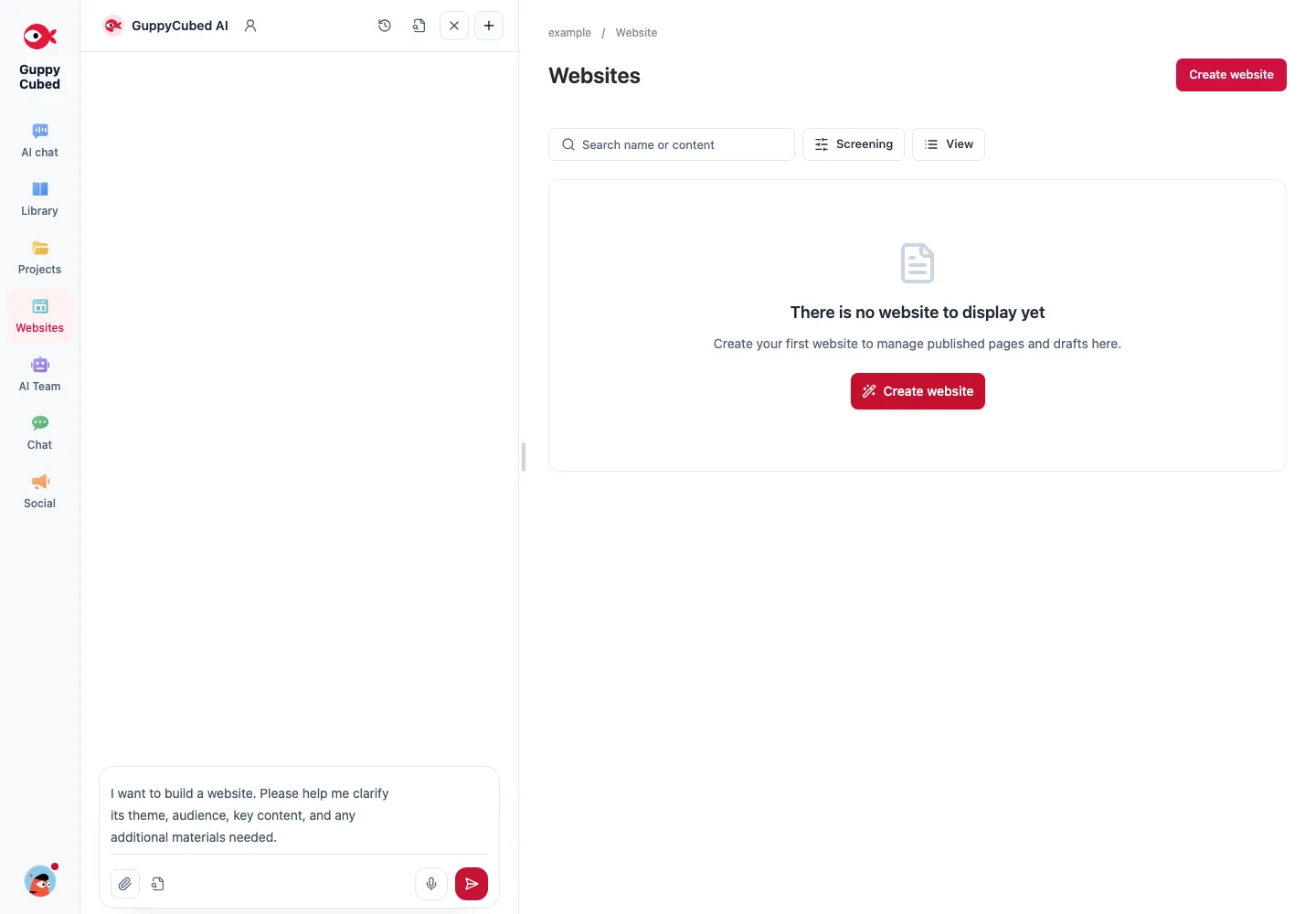
Open outcome showcase in Portal. The empty state offers a create-website action, which prepares an AI conversation about the topic, audience, content, and material.
Explore public website examples, then return to your workspace to draft your own. The image below shows public examples, not the empty Portal entry.
Describe the website’s purpose
For a partner-facing project introduction, provide the organization, audience, workflow, authorized photos, and contact entry. Do not ask AI to invent partner logos, results, or endorsements.
Review the preview
Check that sections answer visitor questions, then inspect desktop and mobile readability. Buttons should lead to the intended registration, donation, or contact destination. Titles and descriptions should explain the subject rather than repeat keywords.
Publish and maintain
Confirm the intended version and publication scope. After publication, open the page and links as a visitor. Follow the domain-verification instructions for a custom domain. A sitemap supports discovery but does not guarantee immediate indexing.
Assign an owner to review changed information. Updating a source file does not automatically update wording on a published website.
Prepare a content inventory
Define audience and purpose, then assemble publishable organization information, services, process, contact details, and next actions. Turn private notes into an appropriate public version before requesting a website.
A reusable request
Draft a tutorial workshop page covering purpose, participation, process, and common questions. Date and venue remain undecided; preserve that status. Include no attendance or impact claims. Provide a draft for review first.
Review the public-facing content
Check title, source accuracy, working destinations, approved contact details, and image rights. Inspect headings, tables, and buttons on mobile.
Separate editing from publication
Recheck the chosen version before following publication controls. A website visible in the workspace does not establish that its public URL has updated. Inspect the published result without signing in.
When details change, review body text, FAQ, and actions as well as the hero. Assign a maintenance owner for date, service, and contact changes.