Sign-in and workspaces
Check the account and workspace before field work. They determine the projects, knowledge, tasks, and actions available to you. These screenshots show the actual app with demonstration data in its Traditional Chinese interface.
1. Use your usual sign-in method
Use the account that accepted your team invitation. The page offers password sign-in and the available third-party options. Different Google or Apple identities can lead to different content; a matching display name does not prove it is the same account.
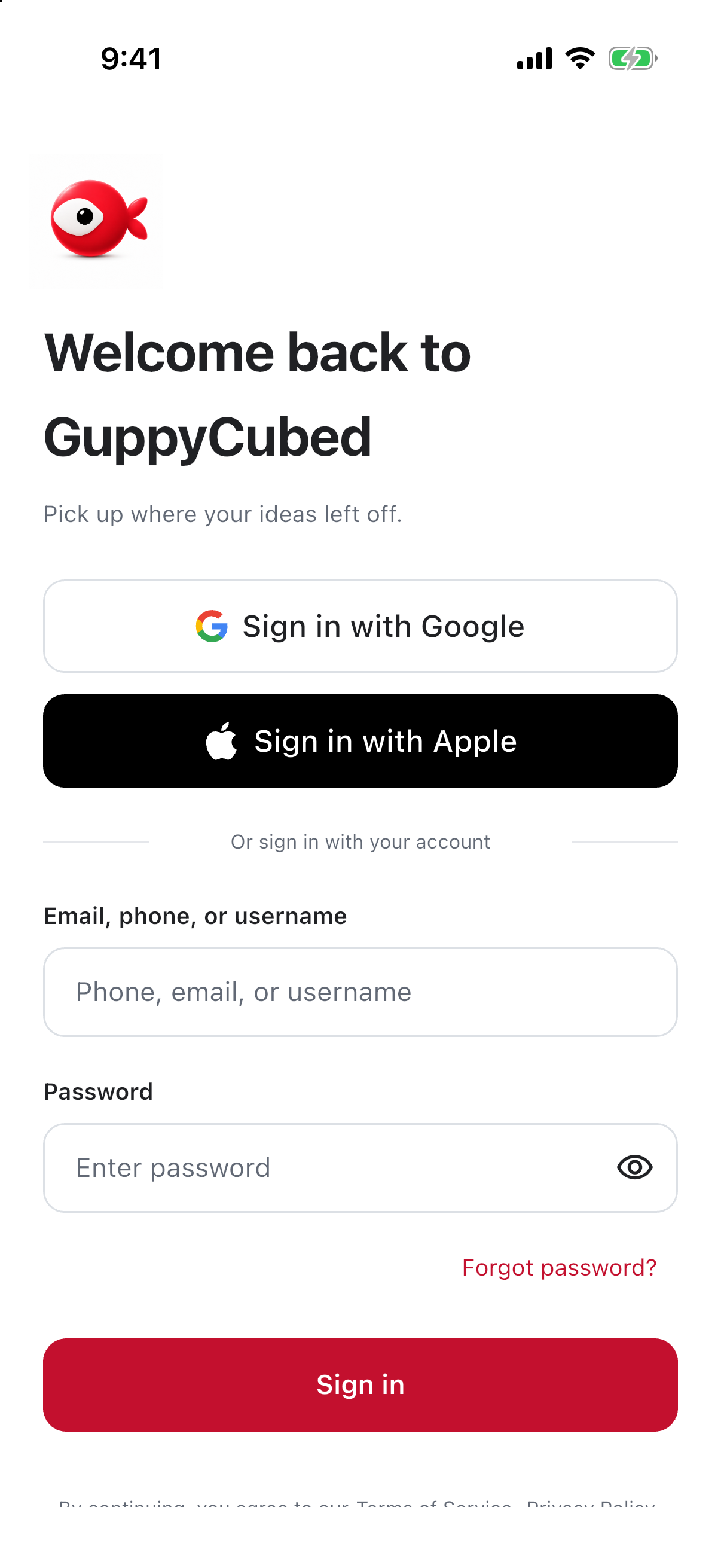
For password recovery, make sure the account’s contact method is accessible. Keep passwords and verification codes out of conversations, documents, and support screenshots.
2. Distinguish personal and team work
The personal entry holds participation records, notifications, and authorized work. An organization workspace provides the team’s collaboration scope. Existing members should check invitations and active roles before creating another workspace.
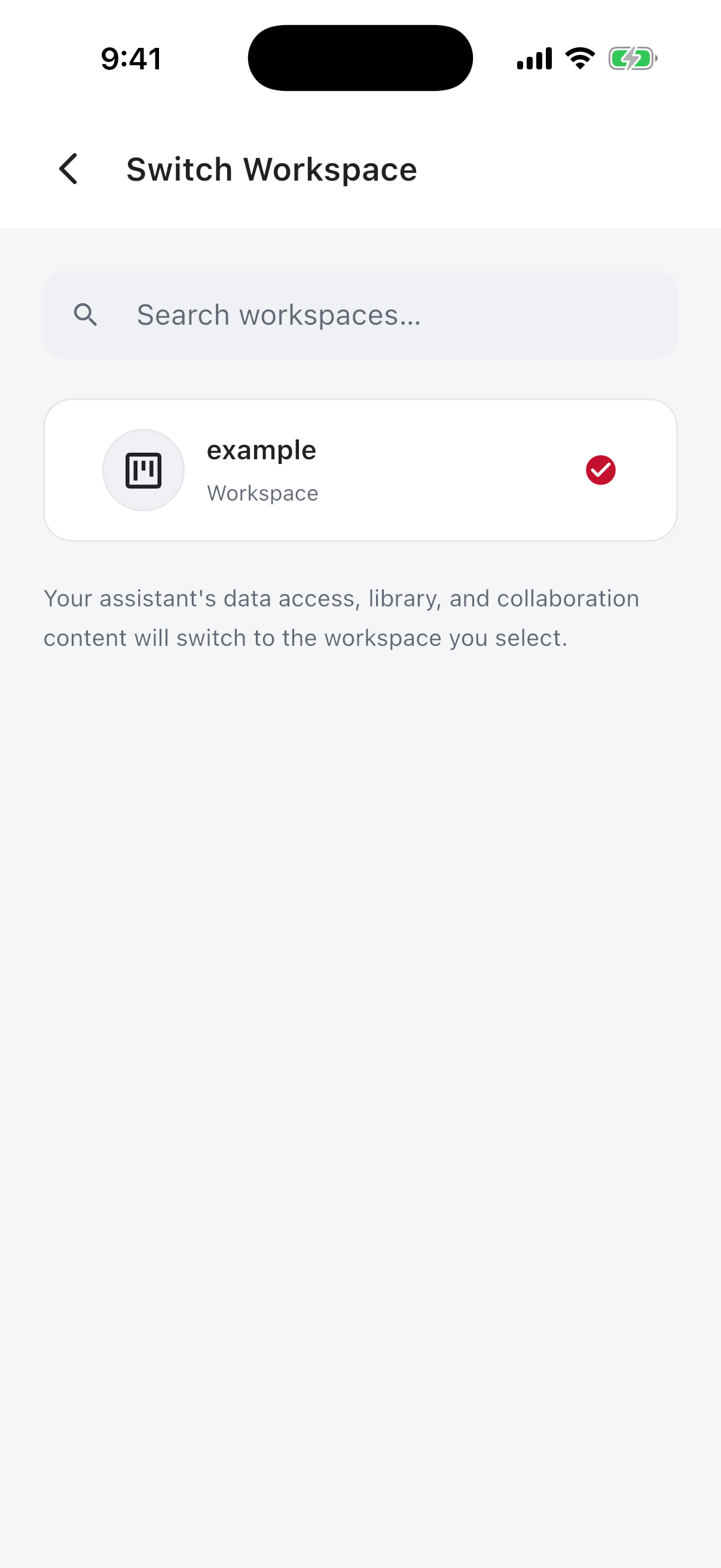
3. Check the destination after switching
Open the library and check folder and work names. Confirm the destination again before recording or importing, so team material does not accidentally stay in a personal location.
If a workspace is missing
Check the account, invitation completion, and membership. Ask an administrator to verify the expected organization. If only one folder is missing, inspect its sharing scope rather than repeatedly creating workspaces or switching accounts.
Next: knowledge and sharing.
Prepare before signing in
Use the account that received the invitation and know the intended workspace name. If you normally use Google sign-in, creating another email account may leave the original invitation and material inaccessible.
Perform a visible check
Check your account and workspace, then open a known item or your task. A personal entry alone does not establish membership or all team capabilities.
Recheck before collecting material
A phone may serve personal and organizational work. Check destination and role before recording or importing, especially after switching context.
| Situation | Direction |
|---|---|
| Invitation missing | Account and acceptance state |
| Similar workspace names | Confirm the intended one with an administrator |
| Task missing | Role, workspace, filters |
| Material missing on a new phone | Prior upload and filing completion |
Shared devices
Sign out when appropriate so the next person does not act as you. Keep credentials out of tutorials and screenshots; workspace and problem state are sufficient for initial support.