Mobile app: capture information and deliver team work
The GuppyCubed app brings together the assistant, knowledge, recording, collaboration, and account settings. Capture field material, review assignments, and submit deliverables on mobile; continue with surveys, reports, and public websites on the web.
Screenshots on this page come from the September 2026 app simulator with demonstration data. Names, dates, and files are not partner results. Personal accounts and organization workspaces can have different entry screens. Screenshots show the Traditional Chinese interface; the captions explain the relevant controls in English.
Step-by-step mobile tutorials
- Sign-in and workspaces
- Working with the mobile assistant
- Library, sharing, and folders
- Recording, transcripts, and highlights
- Chat, tasks, and deliverables
- Notifications, appearance, and troubleshooting
1. Check your workspace before collecting material
Confirm your active identity after signing in. Personal content and organization content have different scopes. Switch to the intended team workspace before choosing a recording or knowledge destination.
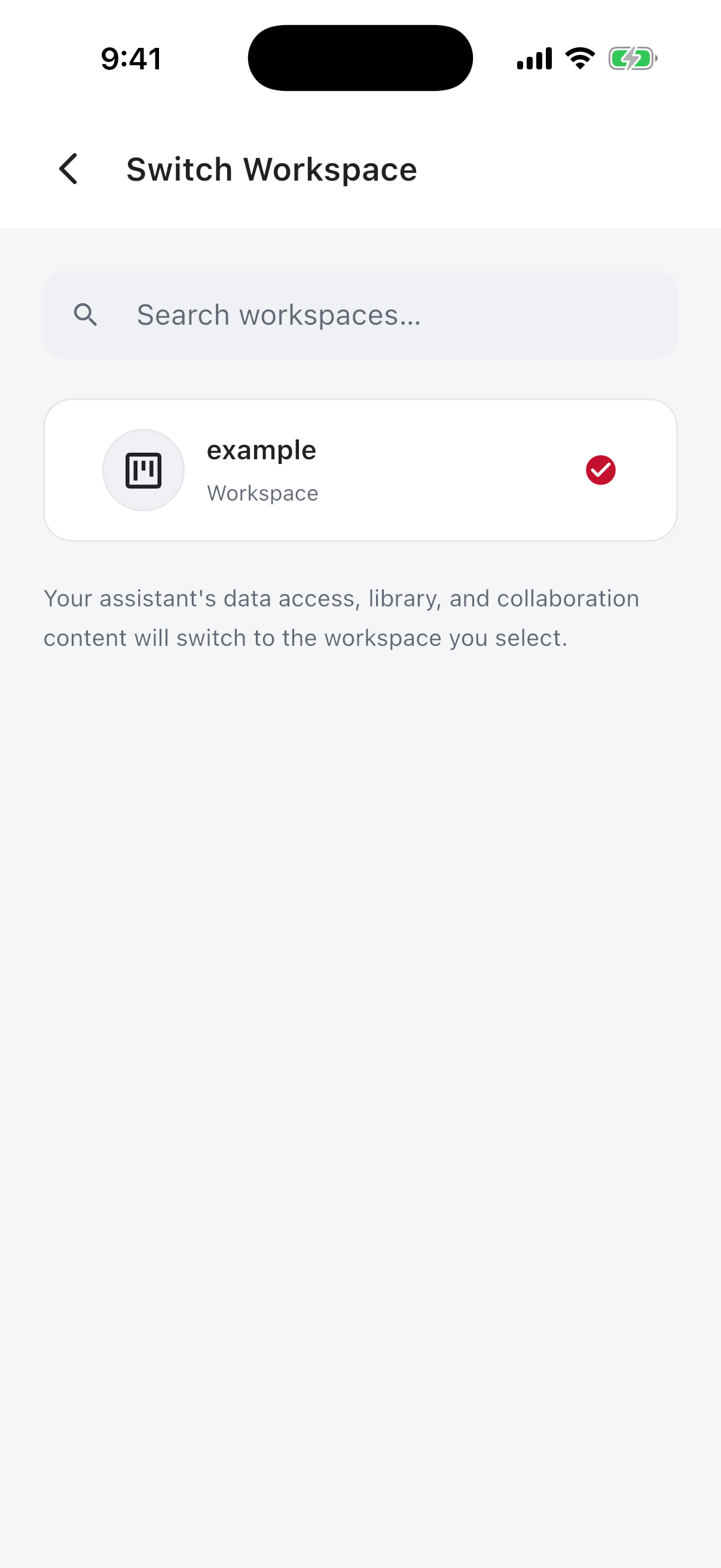
If an organization is missing, check that you signed in with the account that accepted its invitation. Avoid creating a duplicate workspace just because existing material is not visible.
2. Tell the assistant your goal and source scope
Start from project discussions or unfinished tasks, or enter a request directly. Include the intended output, reporting period, and source material. For example: “Summarize three observations from this interview, identify the supporting transcript passages, and list information I still need to provide.”
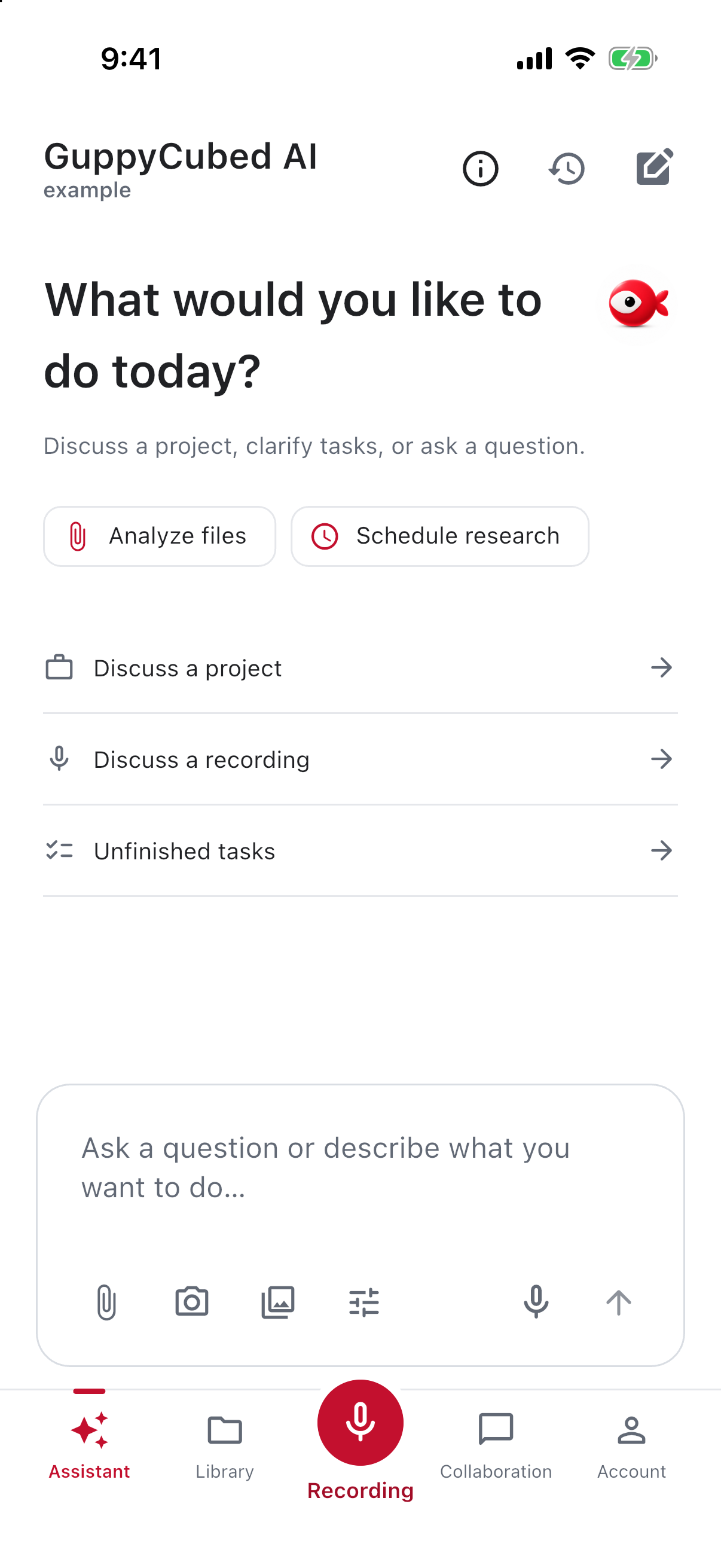
Voice input inserts dictated text into your message. Recording creates a separate audio source. Use the recording entry when you need to preserve a complete interview.
3. Name the recording and choose its destination
Obtain appropriate recording consent and check battery and microphone permissions. A date and topic make a recording easier to identify later. Confirm the destination before starting, then start the interview after recording begins.
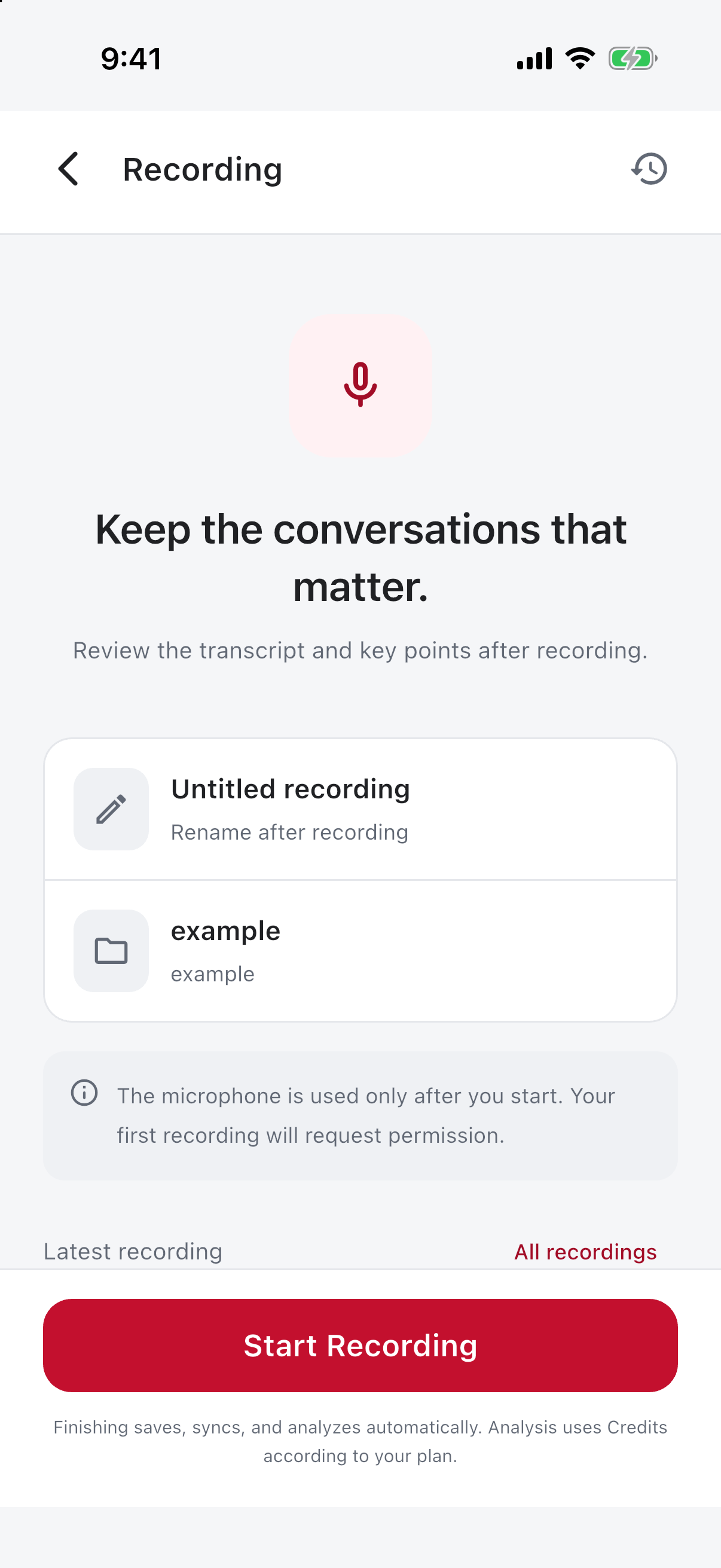
Use pause and resume when needed. After finishing, check submission and upload status. If material is still awaiting upload during a connection problem, retain the local original and check again after reconnecting; do not delete it immediately.
4. Review the transcript, highlights, and meeting document separately
Open recording details to play the original and switch between highlights, transcript, and file information. Check names, specialist terms, amounts, and dates against the audio.
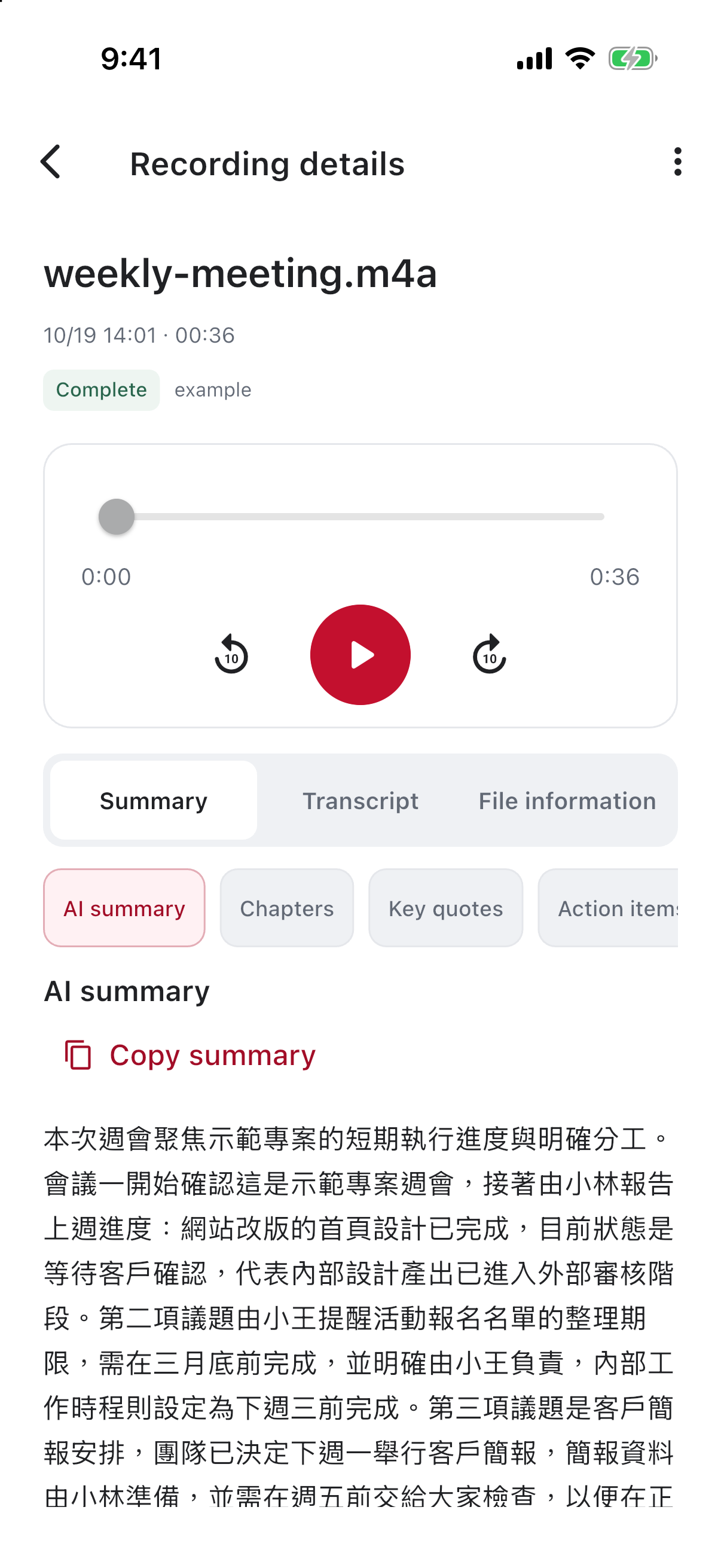
When highlights are not available, use the corresponding action and review the result. A meeting document may have a separate action to add it to knowledge. Confirm that it was added to the intended location if the team needs to retrieve it later; downloading alone is not the same operation.
5. Import through another app’s system share menu
System share import is implemented. Select text, a URL, or supported files in Photos, Files, or another compatible app, open the system share menu, select GuppyCubed, and confirm an authorized workspace. The source app determines which formats it sends.
Check the import batch and processing status in the share inbox. Review suggested filing locations before confirming them. Change an unsuitable suggestion to the correct accessible folder, project, or event. If GuppyCubed is missing from the share menu, check the installed version, sign-in state, and whether the system menu requires enabling its entry.
6. Confirm material is usable in the library
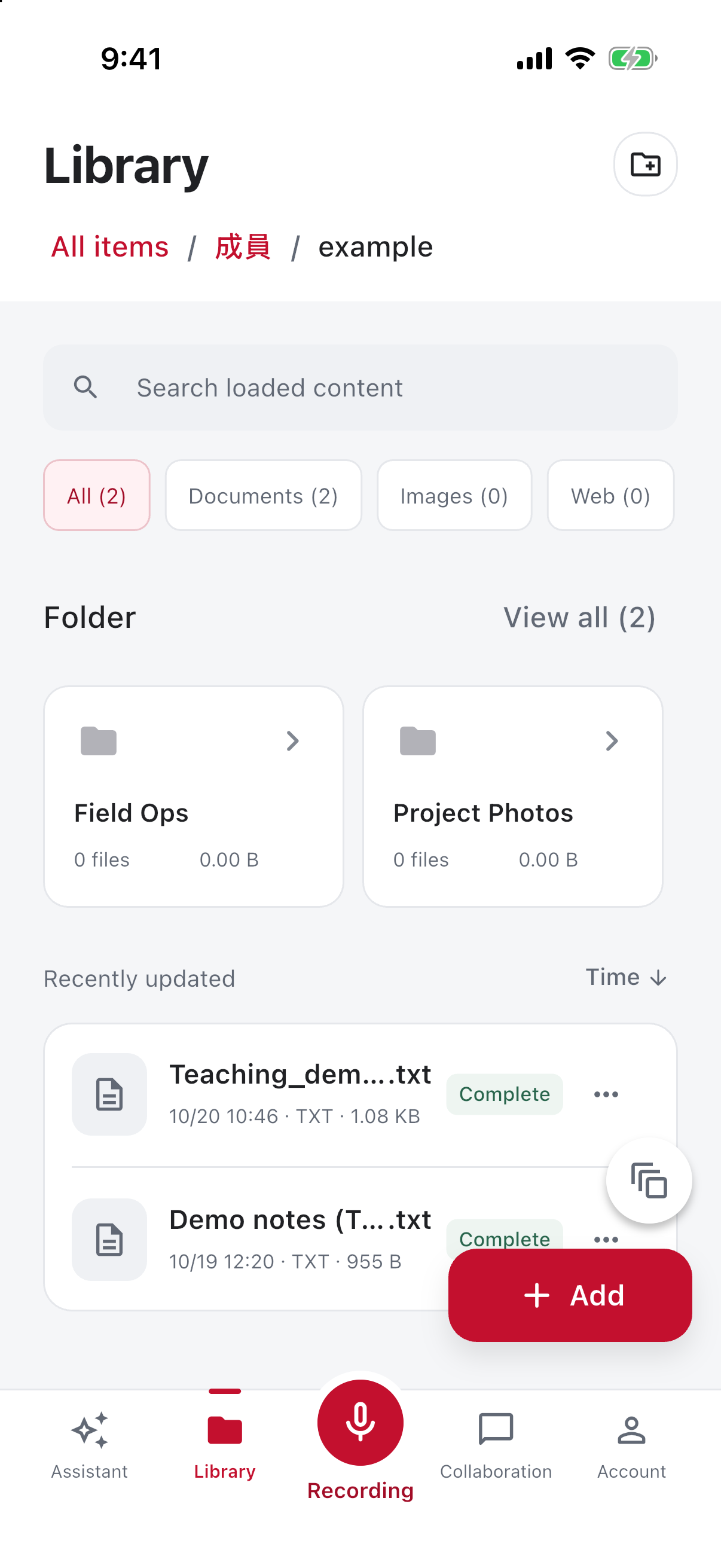
Open a preview and check the filename, contents, and reporting period. Transcription in progress means processing is not finished. Storage success and AI retrieval readiness are different states. Before uploading again, check workspace, folder, filters, and processing status.
7. Submit material against a task’s requirements
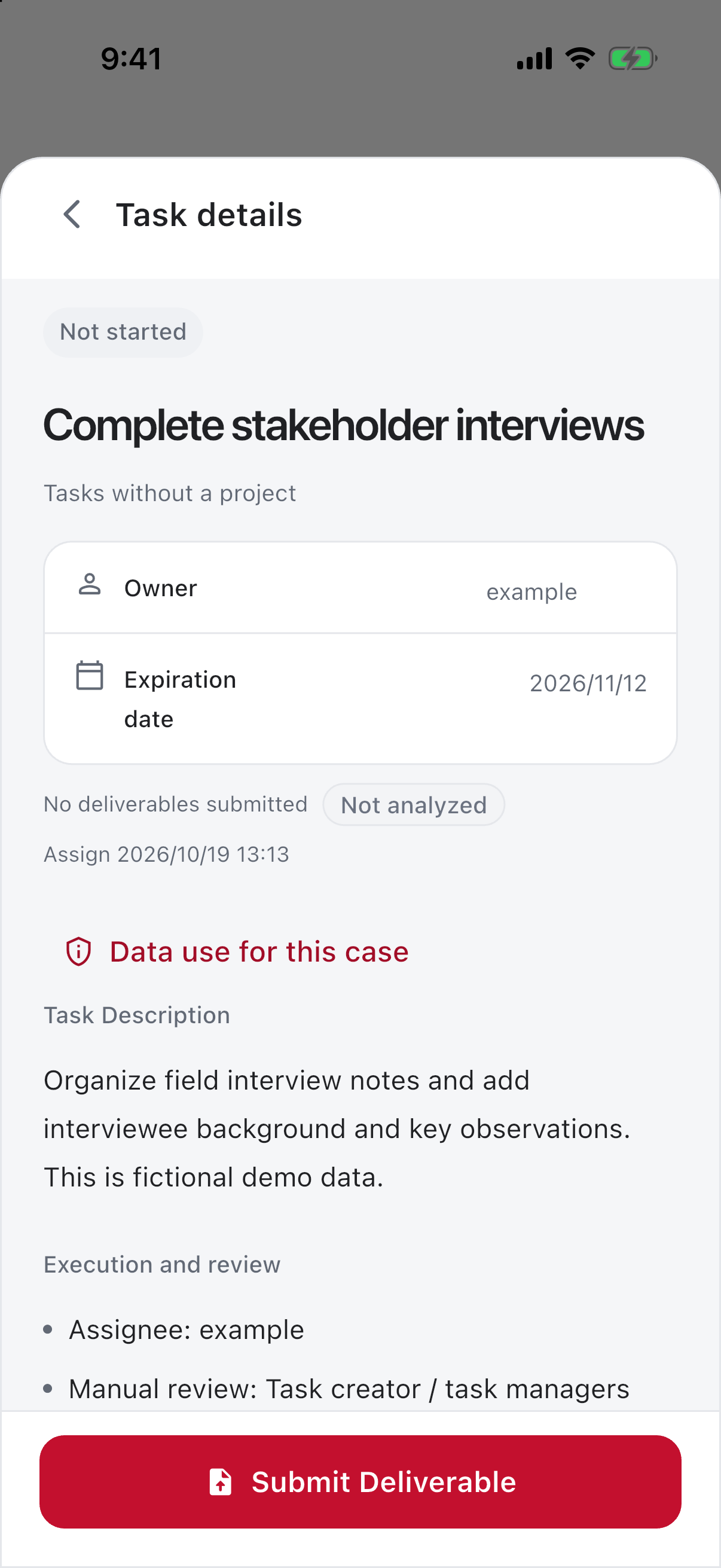
Match each requirement to an actual deliverable. If an assignment requests a transcript and summary, audio alone is insufficient. Follow the review outcome and preserve context when providing revisions.
Completion checks
- Team members can find the material in the intended workspace.
- Original audio plays, and the transcript and summary have been checked.
- Deliverables meet the task requirements; missing information has an owner.
- Documents intended for publication exclude non-public information.
Continue with knowledge operations, team collaboration, and AI reports.
Plan the app flow around field work
Sign in and check the workspace before leaving. Read the assignment, collect audio, photos, or shared material on site, then verify upload and processing before handoff.
| Moment | Action | Completion check |
|---|---|---|
| Before travel | Inspect workspace and task | Know required material and recipient |
| In the field | Record, photograph, share | Originals exist and are identifiable |
| After upload | Check state and destination | The team can locate material |
| After organization | Review transcript, summary, actions | Meaning is accurate and gaps explicit |
| At delivery | Submit or hand off | Know whether review remains |
Different completion states
Stopped recording, uploaded file, finished transcription, readable summary, and accepted task are distinct. Listed actions are not necessarily assigned tasks. Inspect the state and next action in each entry.
With unstable connectivity
Retain originals and avoid repeated submissions. Verify server-side results after reconnecting before retrying or removing local sources.
Use the dedicated tutorials for recording-to-actions, sharing-to-filing, and task delivery-to-review.