Web platform
Sign in and switch workspaces
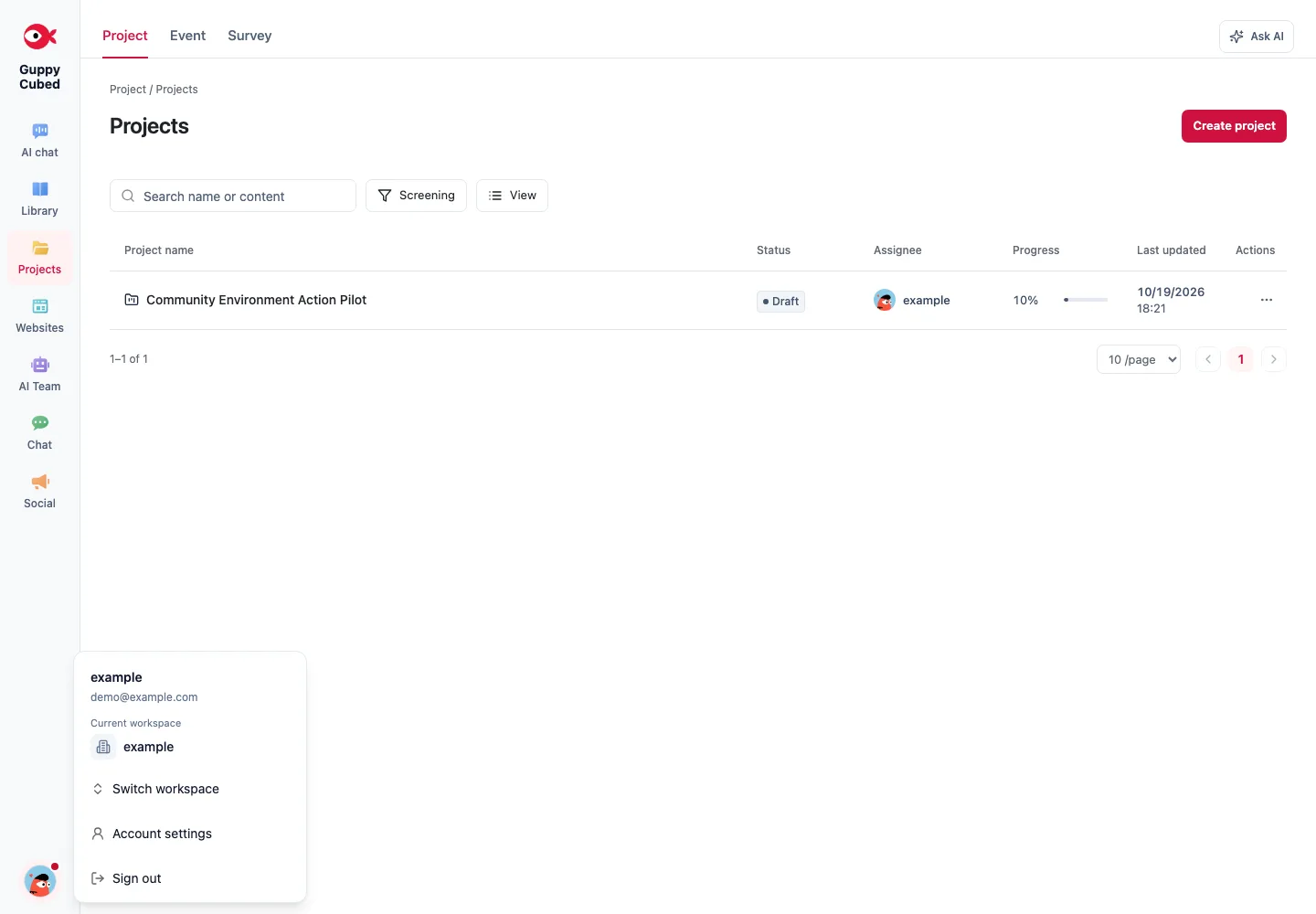
Sign in with email, phone, or Google. Open your account menu in the sidebar to access settings and switch to a workspace you own or have joined. The Impact Center is separate from the desktop workspace switcher.
Main feature areas
The web platform provides GuppyCubed's complete feature set, including:
- Project, task, and workflow management;
- Library uploads and search;
- Events, volunteers, and surveys;
- Donations and use-of-funds content;
- AI conversations and document or website generation;
- Team conversations;
- Member and permission management;
- Subscription and AI usage information.
Browser and device recommendations
Use a recent version of Chrome, Edge, or Safari on a desktop or tablet. A desktop browser provides more space for data-intensive work and report production.
Understand Portal first
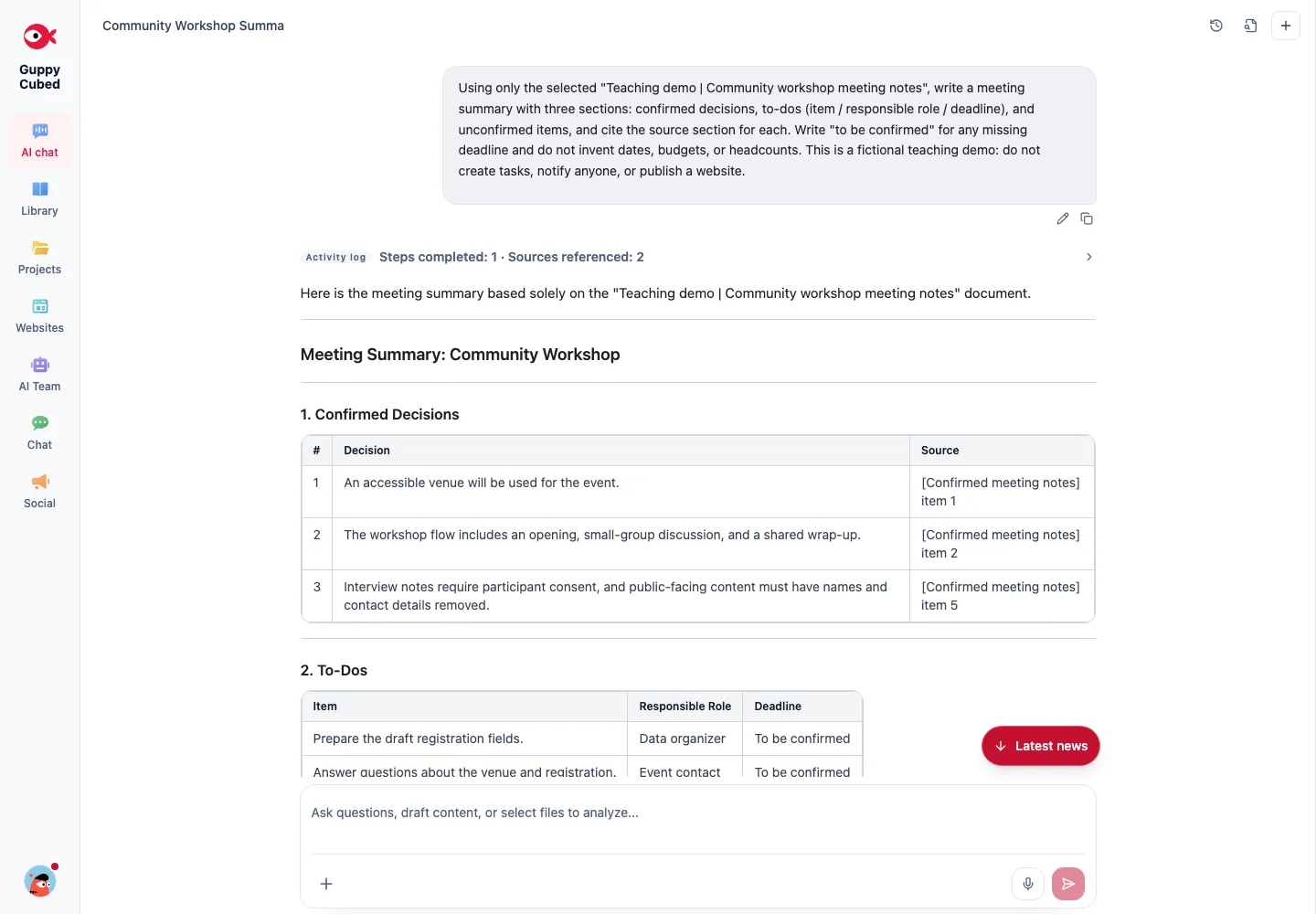
Use the sidebar to move between AI chat, the library, projects, and websites. In AI chat, the work panel on the right follows the current conversation and brings together progress, sources, and generated files. It is separate from organization task management.
Choose the relevant entry
Use Library for files and sources, Projects for project work, and Websites for published sites. Open your profile photo at the bottom of the sidebar, then Account settings, to reach account, workspace, connection, and plan settings.
If a link does not show expected content
Check sign-in, workspace, existence, and permissions. When mobile and web differ, check your account and folder before duplicating uploads or projects.
Editing across tabs
Check save state before switching between tabs editing the same content. Reopen the accepted version before publication so an old tab does not overwrite a newer revision.
Recognize two Portal regions
The chat area contains messages and approval requests. The work panel contains progress, sources, and outputs for that conversation. Select Chat history to reopen a past conversation or New chat to start fresh. Attaching a source does not send a message; describe what you want to do with it.
Follow a knowledge task
Find the source and inspect its name, summary, and processing. Select relevant items, request organization, and compare the response with the material. Correct selection or instructions when they do not match.
Before switching functions, check for unsent or unsaved content. Drafts, conversations, files, and public websites have different persistence and publication controls.
| Symptom | Check first |
|---|---|
| Missing upload | Workspace, folder, filters, processing |
| Disabled action | Required fields, current state, permissions |
| Text reply without a file | Whether file generation was requested and finished |
| Public page unchanged | Publication completion and correct URL |
For help, describe the page, expected result, and what happened, removing sensitive information. This distinguishes navigation, authorization, data, and system problems.